Do you need to extend memberships for multiple members at once due to public holidays, long weekends, or center closures?
On LinkO Web, you don't have to edit memberships one by one. You can immediately extend a single member's membership, or add multiple members to apply the extension period and lesson counts all at once.
Let's walk through how to extend memberships individually or in bulk.
Items you can change through membership extension
You can set the following details when extending a membership:
Date to apply the membership extension
Extension period to add
Number of lessons to add
Reason for membership extension
Members to apply the extension to
If you select multiple members, the same extension details will apply to all of their memberships. Please double-check your selected members and entered details before running the bulk extension.
How to extend memberships individually or in bulk
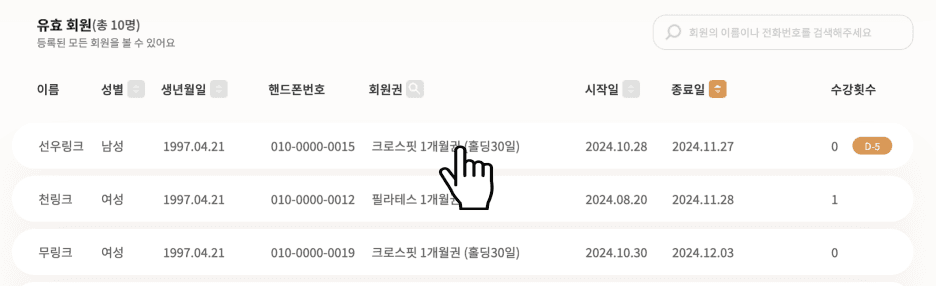
1. Select a member
Go to the Members menu on LinkO Web and select a member to start the extension with.
Even when extending memberships for multiple members in bulk, you must first navigate to the details page of any arbitrary member.
2. Go to the Membership menu
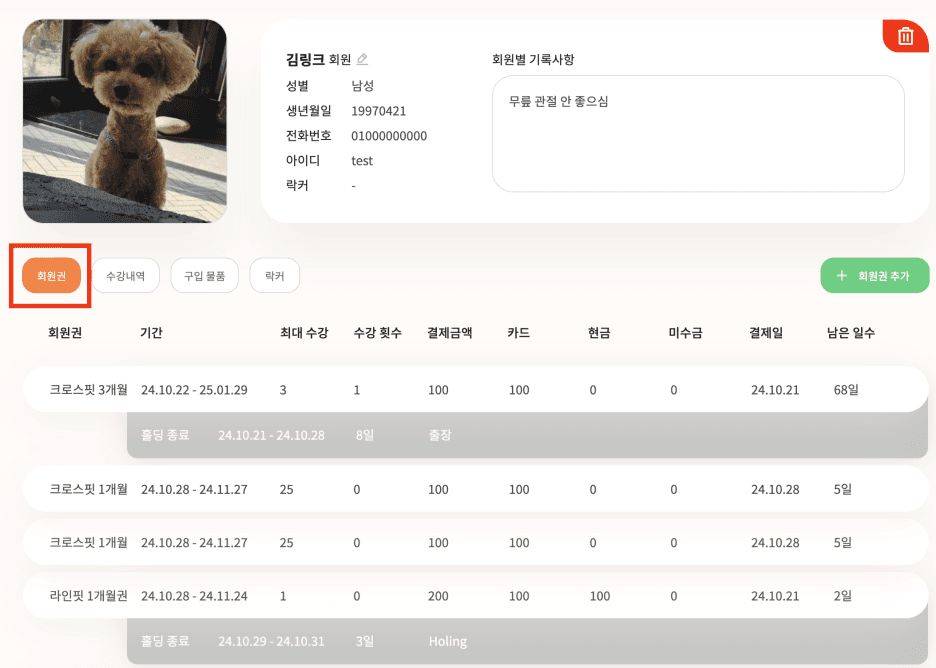
On the member's details page, select Membership.
Here, you can check the memberships currently held by the member and their remaining periods.
3. Select the membership to extend
Hover over the membership you want to extend, and a menu button will appear on the right side.
Select the menu button, then click Extend.

4. Enter the extension details
Enter when and how long you want to extend the membership. You can add both the period and the number of lessons together.
Extension Start Date: Select the date you want the membership extension to apply.
Extension Days: Enter the number of days you want to add to the membership.
Add Lessons: If there are extra lessons you'd like to offer, enter the count here.
Extension Reason: Enter the reason for extending the membership, such as a holiday or center closure.

5. Choose between individual or bulk extension
If you are only extending the current member's membership, you can proceed without adding other members.
To extend memberships for multiple members together, select Add Members to Extend.
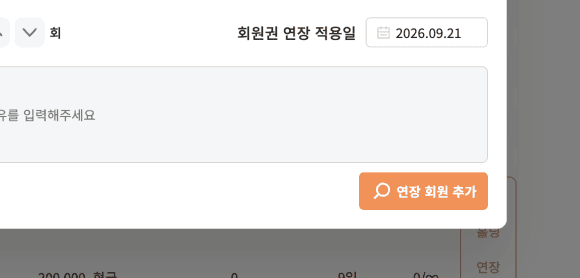
6. Select the members for bulk extension
You can check the member's name, membership name, start date, and end date in the list.
If there are many members, search by name or phone number, or use the Status, Gender, On Hold, and Membership Info filters.
Check the boxes next to the memberships you want to extend. To select all memberships displayed on the list, simply check the box at the very top.
At this time, if the same member holds multiple memberships, their name might appear multiple times! Please verify the membership name and period before selecting the specific membership to extend.
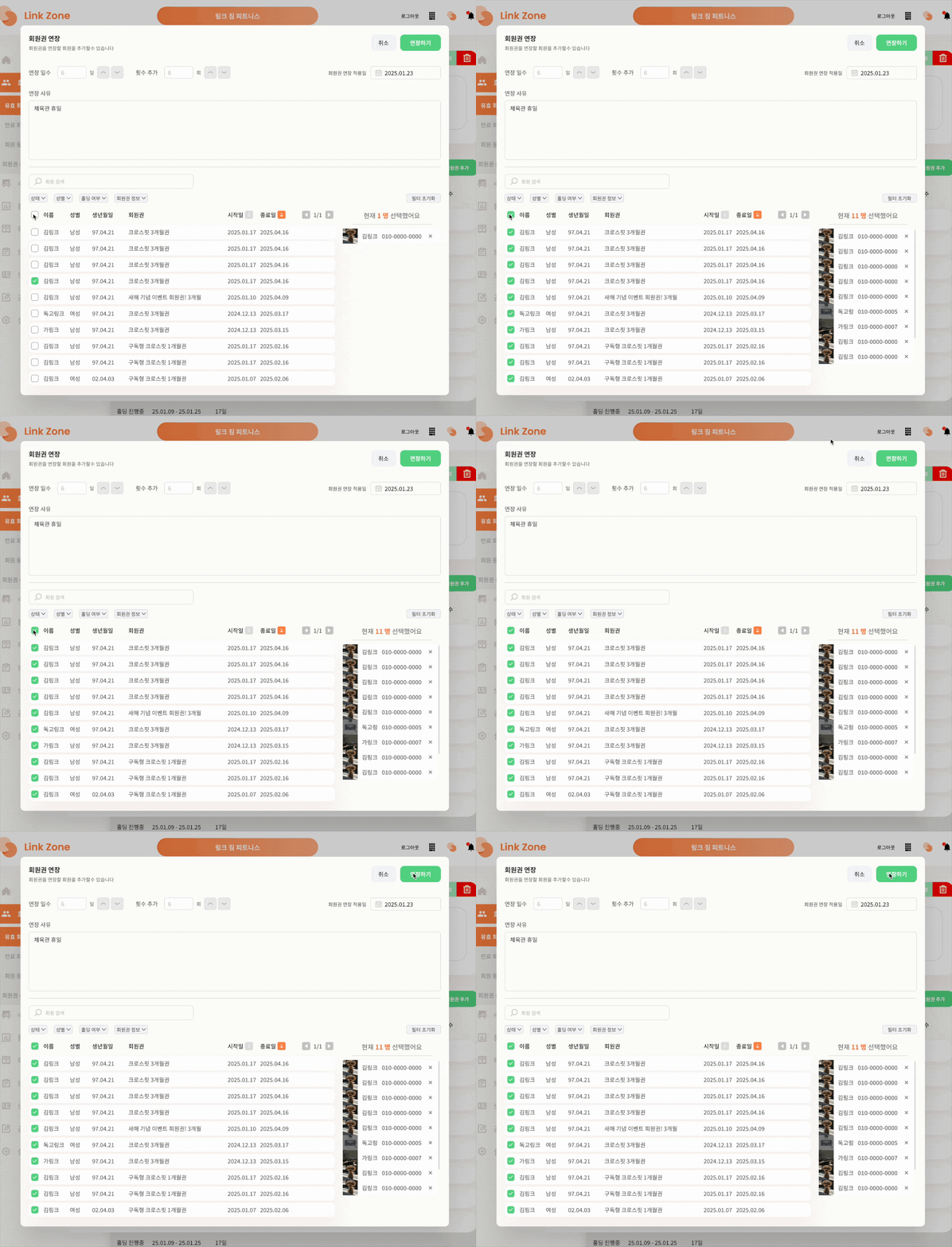
7. Confirm and apply the extension details
Once you're done selecting members, double-check the following information:
Selected members and memberships to extend
Extension start date
Extension days
Number of lessons to add
Reason for extension
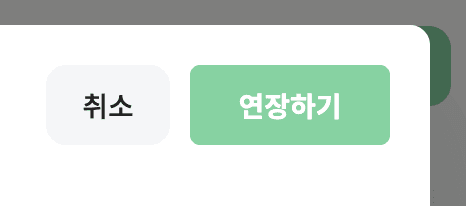
If everything looks correct, click Extend.
Difference between Individual and Bulk Extensions
Type | How to Apply | Best Used For |
|---|---|---|
Individual Extension | Extend without adding other members | Adjusting the period or lesson counts for a specific member only |
Bulk Extension | Select multiple memberships from Add Members to Extend | Applying the same criteria to multiple members due to holidays or center closures |
Frequently Asked Questions
Can I select only some members' memberships?
Yes. In the bulk extension screen, just check the boxes next to the memberships you need. You can find members quickly by using search and filter options.
Why is the same member's name showing up multiple times?
If a member holds multiple memberships, their name may appear for each membership they have. Please check the membership name, start date, and end date before choosing which membership to extend.
Can I add both period days and lesson counts together?
Yes. You can enter both Extension Days and Add Lessons at the same time. If you don't need to add lessons, you can leave that field blank.